Securing your account with two-factor
Turn on an authenticator app (recommended) or email codes, and save your recovery codes somewhere safe.
Good fit if your workspace holds your strategy and you want a second factor so a stolen password is not enough to get in.
Two-factor authentication means a password alone cannot sign in as you: a one-time code is also required. For a tool that holds your strategic plans, that second factor is the cheapest large security upgrade you can make.
- Open Settings → Profile and find "Two-Factor Authentication".There are two options: an authenticator app (recommended) and emailed codes. They are mutually exclusive.
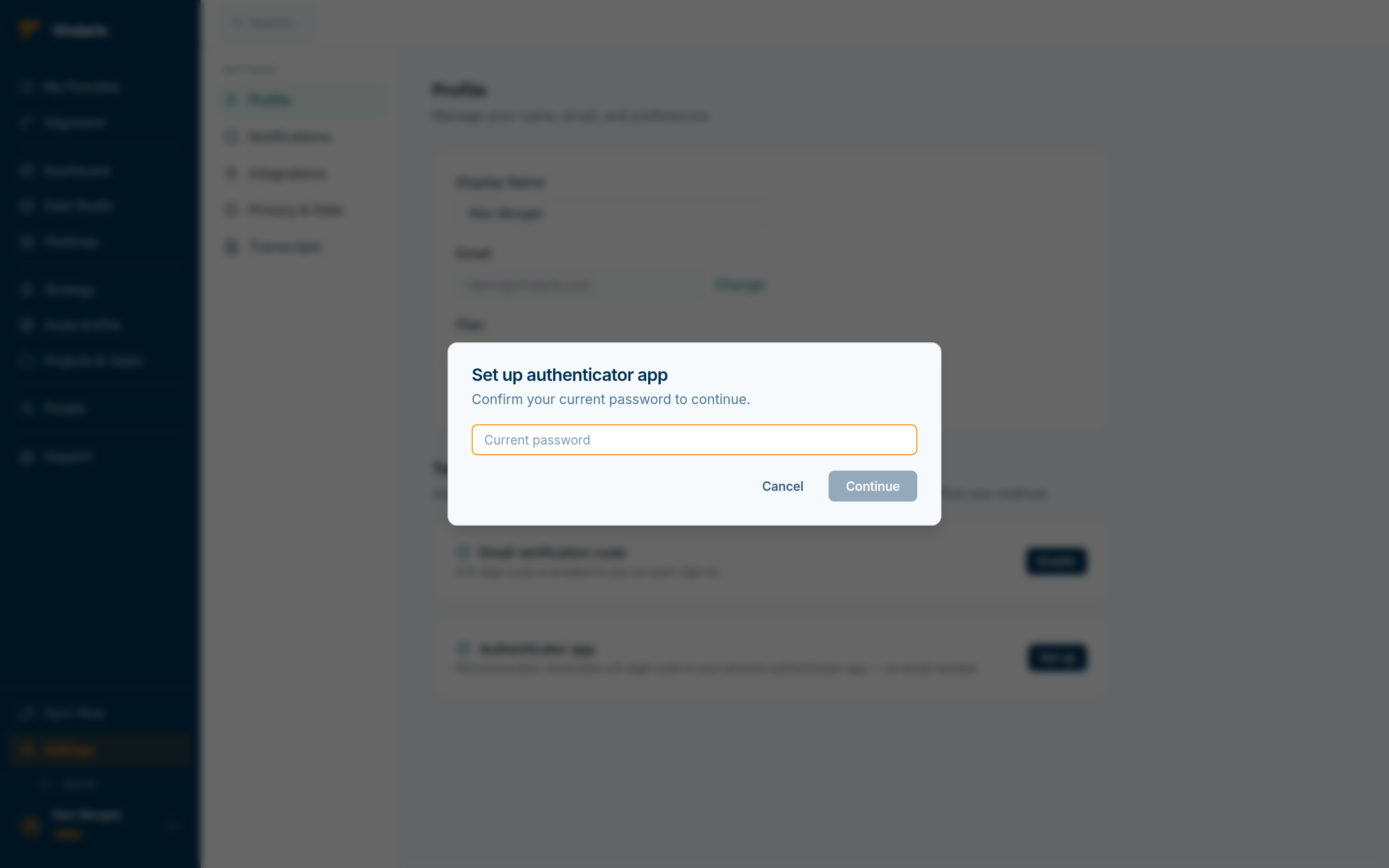
Settings → Profile: scan, verify, save recovery codes. - Click "Set up" under "Authenticator app".Confirm your current password, then scan the QR code with any TOTP app (or enter the secret by hand) and type the 6-digit code it shows to verify.
- Save your recovery codes.You are shown a set of one-time codes: copy them and store them somewhere safe. They are your way back in if you lose your phone.
- Prefer email codes? Use "Enable" under "Email verification code" instead.A 6-digit code is emailed on each sign-in. Disable email MFA before switching to the authenticator app.
Email is a weaker second factor: if an attacker has your password they often have a path to your inbox too, collapsing the two factors into one. An authenticator app generates codes on a device you physically hold, with nothing to intercept in transit. That is why it is the recommended option; email MFA is the fallback when an app is not practical.
If you lose both your authenticator device and your recovery codes, you can be locked out and will need an administrator to reset your access. Store the codes the way you would store a backup key, not in the same place as your phone.
When teams reach for this
You turn on a second factor at login: an authenticator app, which is the stronger option, or email codes. Vindaris gives you recovery codes to save, so you can still get in if you lose the second factor.
Who it helps
Vindaris fits every user protecting their own login, and the admin responsible for the workspace's security posture. It suits scale-ups and mid-market companies, roughly 30 to 500 people, whose strategy and performance data are worth protecting.
Why it helps
At that size a workspace holds the company's strategy, goals and performance, so a single stolen password is a real exposure. Two-factor adds a second step at login, so a leaked password alone cannot get someone in.
In practice
- Add a second factor at login. Two-factor asks for a code from your authenticator app or email on top of your password, so a stolen password is not enough on its own. The second step is what keeps a leaked credential from becoming a breach.ExampleA finance lead turns on an authenticator app, so even a phished password cannot open their workspace without the phone.
- Prefer an authenticator app over email codes. An authenticator app generates codes on your device, so it holds up better than email codes that depend on a mailbox that could itself be compromised. The stronger factor is a quick setup for a meaningful gain.ExampleA user scans the setup code into their authenticator, and from then on each login asks for the rolling code.
- Save your recovery codes somewhere safe. Recovery codes let you back into your account if you lose the second factor, so storing them safely is part of the setup rather than an afterthought. Keeping them somewhere secure is what makes two-factor safe to rely on.ExampleA user saves their recovery codes in a password manager, so a lost phone does not lock them out of the workspace.
Vindaris maps your strategy, goals and KPIs down to every project and task, and the Work Graph flags execution risk wherever effort has drifted from the goal, with task-level context down to the Slack thread.
Put this into practice
Vindaris keeps strategy, goals, projects and tasks in one place, and the Work Graph flags execution risk before it costs you. Start free, no credit card.
Sign Up for Free