Letting the work graph point you at what matters
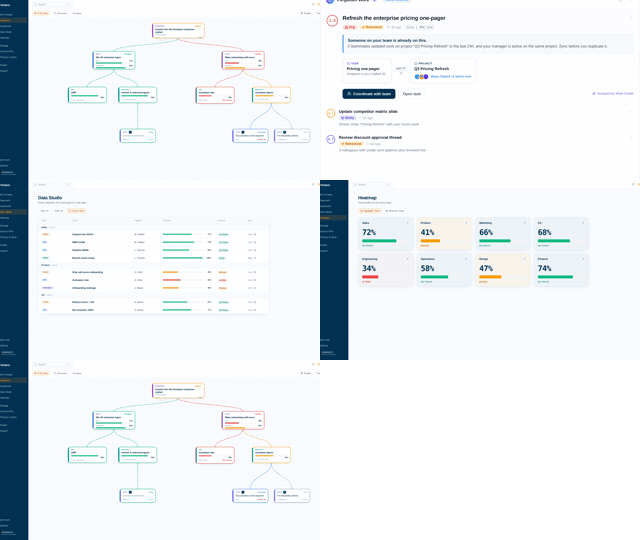
Use the Work Graph panel to see what to do next, understand the weighted signals it ranks by, and tune them as an admin.
Good fit if you have forty open tasks and limited hours and want the system to tell you which few actually move the strategy now.
The work graph is the engine that watches the whole strategy to tasks chain and ranks the work most worth your attention. It does not rank by due date alone. It weighs a range of signals, from deadlines and risk on the goals your work supports to KPI momentum and what your teammates are actively updating, and puts the highest-scoring items in front of you.
Where you see it
- Read the "Work Graph" panel at the top of My Priorities.It ranks your open work by score and shows each item with a signal-strength mark, a category label (such as "Supporting goal at risk" or "Needs alignment"), and a one-line reason for why it was raised. The same panel is available as a Dashboard widget.
- Act on an item or dismiss it.Click a task to open it, or dismiss it to drop it from the panel. A dismissed item comes back only if its situation changes.
- Open the Activity panel and filter to "Work Graph".The activity pane has a Work Graph filter that collects the same signals as a feed: forgotten work, stale tasks, alignment gaps, a supporting goal at risk, team signals and misaligned work.
- Click an entity alert for the full picture.A work-graph alert that points at one goal, KPI or task opens a detailed window, so a KPI risk alert, for example, opens with its trajectory rather than just a line of text.
Due date is one signal and a weak one: the most urgent thing is often not the soonest-due thing. A task tied to an at-risk, high-priority goal that your manager is also working on this week matters more than a low-stakes item due tomorrow. Combining deadline, risk, KPI momentum and organizational signals is how the work graph gets to "what actually matters now" rather than "what is merely soonest".
The signals it weighs
The work graph scores each task against a range of signals, grouped into four families. Each signal that fires adds its weight to the task's score (capped at 5.0), scores stack when several fire, and anything below the minimum relevance score is left out.
- Context: what you were working on.Temporal (tasks you used to update at the same time as your recent work), Entity (shared project codes, client domains or company names), and Environmental (work from the same meeting, Slack channel or email thread).
- People: what your team is doing.Behavioral (colleagues with similar work patterns also looked at this), Organizational (your manager or peers are active on the same project), and Team Momentum (teammates are updating sibling tasks under the same goal while yours sits still).
- Strategy: does this still matter.Aligned (the task chains up through goals and projects to a strategy, with a decayed score the further away it sits) and Syntax (the task wording echoes a strategy title, vision or narrative even without an explicit link).
- Risk and urgency: is something about to slip.Risk (the task connects to a goal or KPI that is at risk or behind), KPI Momentum (a connected KPI has stalled or is declining across its recent check-ins), and Deadline (an approaching or overdue date on the task or a parent goal).
Alongside scoring, the work graph flags misaligned work: active tasks with no link to any goal, project or strategy. These orphan tasks are effort that cannot be traced to the strategy, so they appear under the Work Graph filter for you to link them up or set them aside.
Tuning it (admins)
Everything above is configurable in Admin → Work Graph.
- Turn each signal on or off and set its weight.Each enabled signal has a weight from 0 to 2. Risk carries the most weight by default. Turn up Risk and Deadline for a delivery team, or KPI Momentum for a metrics-driven one.
- Set the timing thresholds."Forgotten after" marks a task stale once untouched that long (72 hours by default), the "Active signal window" is how far back to read manager and peer activity (24 hours), and the "Min relevance score" is the floor a task must clear to be shown (0.5).
- Set the alignment and BAU controls.Auto-suggest alignment on new tasks, the minimum suggestion confidence, how long untriaged work waits before a batched reminder, whether contributors are notified when a supporting goal is at risk, whether effort tracking (story points) weights the strategy-vs-BAU split, a target strategic share with a BAU-creep alert, and your named BAU categories. See "Watching strategy vs. BAU allocation".
When teams reach for this
The Work Graph panel ranks your tasks by weighted signals, from pace and risk on the goals they support to KPI momentum and what teammates are actively updating, rather than due date alone. It puts the highest-scoring work in front of you, and admins can tune the weights.
Who it helps
Vindaris fits the IC and team lead with more tasks than hours, and the manager who wants the team pointed at what matters. It suits scale-ups and mid-market companies, roughly 30 to 500 people, where each person's task list is longer than any week can clear.
Why it helps
At that size a flat task list sorted by due date buries the few items that actually move the strategy. The Work Graph ranks each task by weighted signals, so the panel puts the highest-impact work in front of you instead of the most imminent.
In practice
- Work the few tasks that move the strategy. The panel ranks your tasks by their weighted impact on goals and KPIs, so the top of the list is the work most worth your hours. You spend a limited week on what matters rather than on whatever is due next.ExampleAn IC opens the panel to find a low-urgency task that unblocks a company goal ranked above a due-today chore, and does it first.
- Catch work that connects to nothing. The Work Graph surfaces tasks that link to no goal, so orphan work is flagged rather than quietly worked on. Naming the disconnected work is how effort stays pointed at the strategy.ExampleThe panel flags a task tied to no goal, and the lead either links it to one or drops it as busywork.
- Tune the weights to how your team runs (admins). Admins can turn signals on or off and set their weights, so a delivery team can lean on deadlines and risk while a metrics team leans on KPI momentum. The ranking matches how the team actually works rather than a fixed formula.ExampleAn admin turns up the risk and deadline weights for an engineering team, so the panel favors the work keeping releases on track.
Vindaris maps your strategy, goals and KPIs down to every project and task, and the Work Graph flags execution risk wherever effort has drifted from the goal, with task-level context down to the Slack thread.
Put this into practice
Vindaris keeps strategy, goals, projects and tasks in one place, and the Work Graph flags execution risk before it costs you. Start free, no credit card.
Sign Up for Free