Reading the risk heatmap
Pick what to aggregate by and what to measure, read the colored tiles, and click into the detail of any hotspot.
Good fit if you want a one-screen read on where things are slipping, by team, owner, goal or project, without scrolling a list.
The heatmap turns the whole workspace into a grid of colored tiles so trouble is easy to spot: green is on track, amber is behind, red is at risk. It is the fastest way to answer "where should I look first?"
- Open Heatmap from the sidebar.Each tile is one group, showing a headline number, a status label and a progress bar. Tiles sort worst-first, so the at-risk groups are always at the top-left.
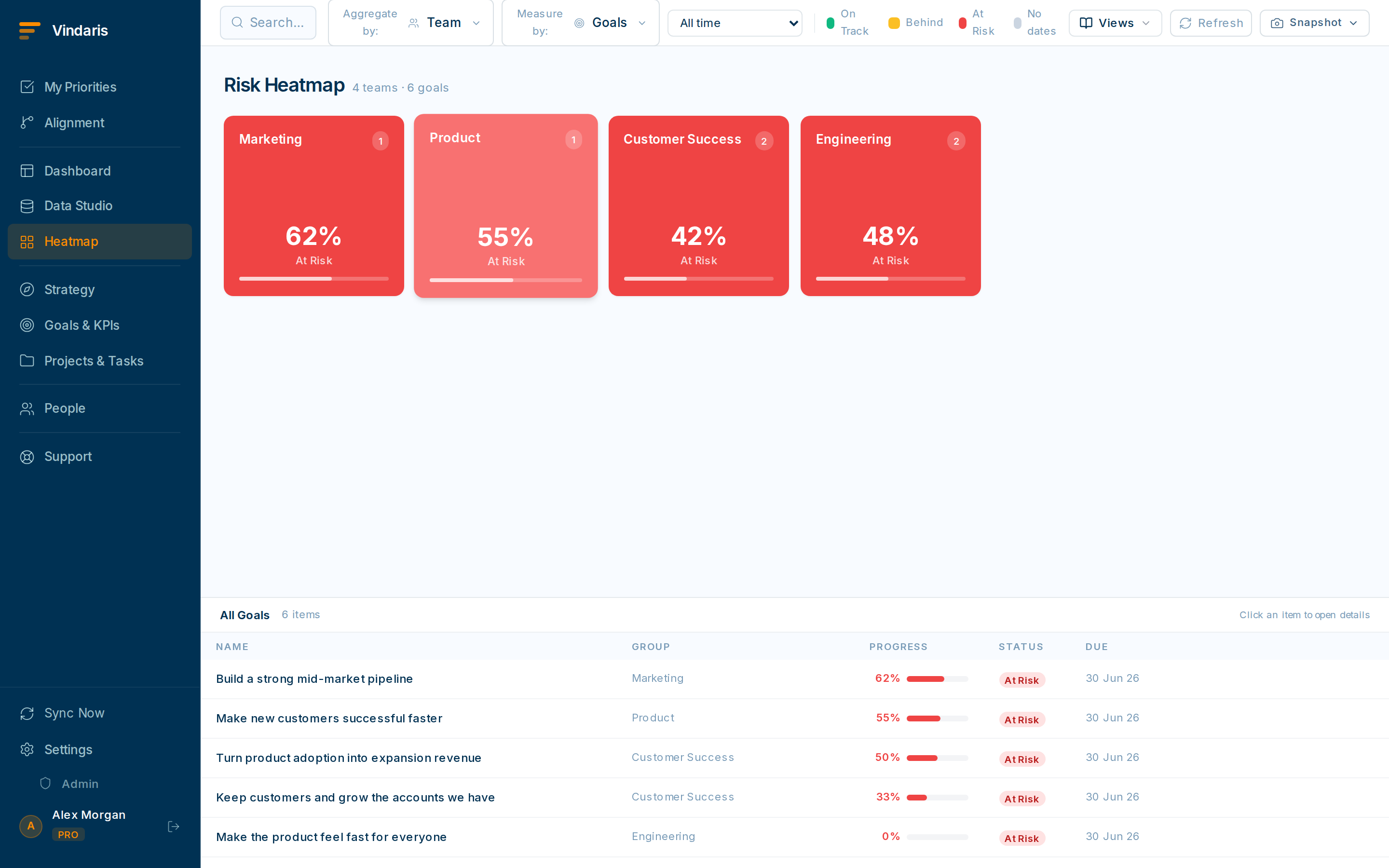
Heatmap tiles, sorted worst-first. - Set "Aggregate by" to choose the rows: Team, Owner, Goal, KPI or Project.This is the lens: "by Team" answers which team is struggling; "by Owner" makes it personal.
- Set "Measure by" to choose what the color means: Goals, KPIs, Projects, Tasks or Risks.Goals/KPIs/Projects/Tasks color by schedule status; "Risks" colors by structural gaps (orphaned tasks and missing links) instead.
- Click any tile to filter the detail table below it to that group, then click a row to open it.
- Click a color in the legend to show only tiles at that status.The legend doubles as a filter, so clicking the red swatch narrows the grid to at-risk groups and nothing else.
- Click "AI Summary" to get a written read of what the heatmap is showing.The summary is scoped to the tiles currently shown, so filtering first keeps it focused on the groups you care about.
A list makes you read to find the problem; a heatmap makes the problem find you. Density and color are pre-attentive: a block of red registers before you have read a single word. Aggregating by team or owner also reveals concentration a flat list hides: not just "12 things are at risk" but "9 of them belong to one team", which is a different conversation.
Once you have an Aggregate/Measure/Cycle combination you trust, save it as a view from the toolbar. Your Monday risk scan becomes one click instead of three dropdowns.
When teams reach for this
The risk heatmap is a grid: you choose what to aggregate by, such as team, owner, goal or project, and what to measure, and each tile takes a color from how healthy that slice is. Click any tile to drop into the detail behind it.
Who it helps
Vindaris fits the Chief of Staff and COO scanning the whole org for trouble, the manager watching their teams, and the PMO tracking a portfolio. It suits scale-ups and mid-market companies, roughly 30 to 500 people and multi-team, where there are too many goals and owners to read as a list every week.
Why it helps
Past a handful of teams, a sorted list of everything is too long to scan, so slipping items hide in the middle of it. The heatmap collapses the whole picture into colored tiles, so a hotspot stands out by color and one click opens the detail that explains it.
In practice
- Find hotspots by color instead of scrolling. Aggregate by team or owner and the grid colors each slice by health, so the one red tile among the green ones is where to look first. You start from the problem instead of reading every row to find it.ExampleAggregating by team, the heatmap shows one team's tile red while the rest are green, so the COO opens that team's work first in the weekly review.
- Choose the cut that answers your question. Switch what you aggregate by and what you measure, so the same data forms the grid that fits the question, whether that is which owner is overloaded or which goal is behind. The grid re-forms around the cut you pick.ExampleTo check for overload the Chief of Staff aggregates by owner measured on overdue work, and two people's tiles turn red, pointing to where to rebalance.
- Click a hotspot straight into the detail. Every tile is a way into the goals, KPIs or tasks behind it, so the color tells you where and one click tells you why. You move from the one-screen read to the specific items without rebuilding a view.ExampleThe red tile for Onboarding opens to the two stalled projects dragging it, so the read turns into an action in a single click.
Vindaris maps your strategy, goals and KPIs down to every project and task, and the Work Graph flags execution risk wherever effort has drifted from the goal, with task-level context down to the Slack thread.
Put this into practice
Vindaris keeps strategy, goals, projects and tasks in one place, and the Work Graph flags execution risk before it costs you. Start free, no credit card.
Sign Up for Free