Outlook logoOutlook
Email to tracked work

Give an email a category, and Vindaris tracks the commitment inside it.

Customer requests and promised deliverables arrive in Outlook and tend to stay there. Vindaris turns the mail you categorize into tasks you can align to a goal, and removes the category when the task is done.
Connect Outlook free
Trigger
The Outlook categories you select. Pick one or several.
Creates
One task per categorized email, with the subject, the sender and a link back to the message.
On completion
Vindaris removes the category and can move the mail to Archive.
Auth
Microsoft OAuth. Work, school and personal Microsoft accounts.
What Vindaris reads

Your Outlook categories are the interface.

You already sort mail with categories. Vindaris uses the ones you pick as the signal that an email holds work worth tracking.

The categories you select

Vindaris lists the categories in your Outlook and you choose which ones to import. Vindaris does not import mail without a selected category.

A task per email

Each categorized message becomes one task with the subject as its title, the sender and received date in the description, and a link that opens the message in Outlook.

Importance sets the priority

A message marked high or low importance in Outlook becomes a high or low priority task. Everything else is medium.

Vindaris removes the category on completion

Completing the task in Vindaris takes the selected category off the message. Other categories on the same message stay.

Optional archiving

Turn on archiving and Vindaris also moves the message to your Archive folder when the task is done.

Replies as comments

A short preview of the other messages in the same conversation appears as comments on the task, so the task carries the thread around it.

How the connection works

Choose the categories, then align the tasks.

The setup is short, and the only thing it adds to your day in Outlook is assigning a category.

01
Sign in with Microsoft

Connect from the integrations settings in Vindaris. A work, school or personal Microsoft account works.

02
Pick your categories

Choose which of your existing Outlook categories feed Vindaris. You can change the selection at any time.

03
Align the tasks to goals

Align each task from Outlook to the goal it supports, so an email commitment sits next to the planned work.

04
Complete the task

Mark the task done in Vindaris and the category comes off the message in Outlook.

Task board

Email commitments next to planned work.

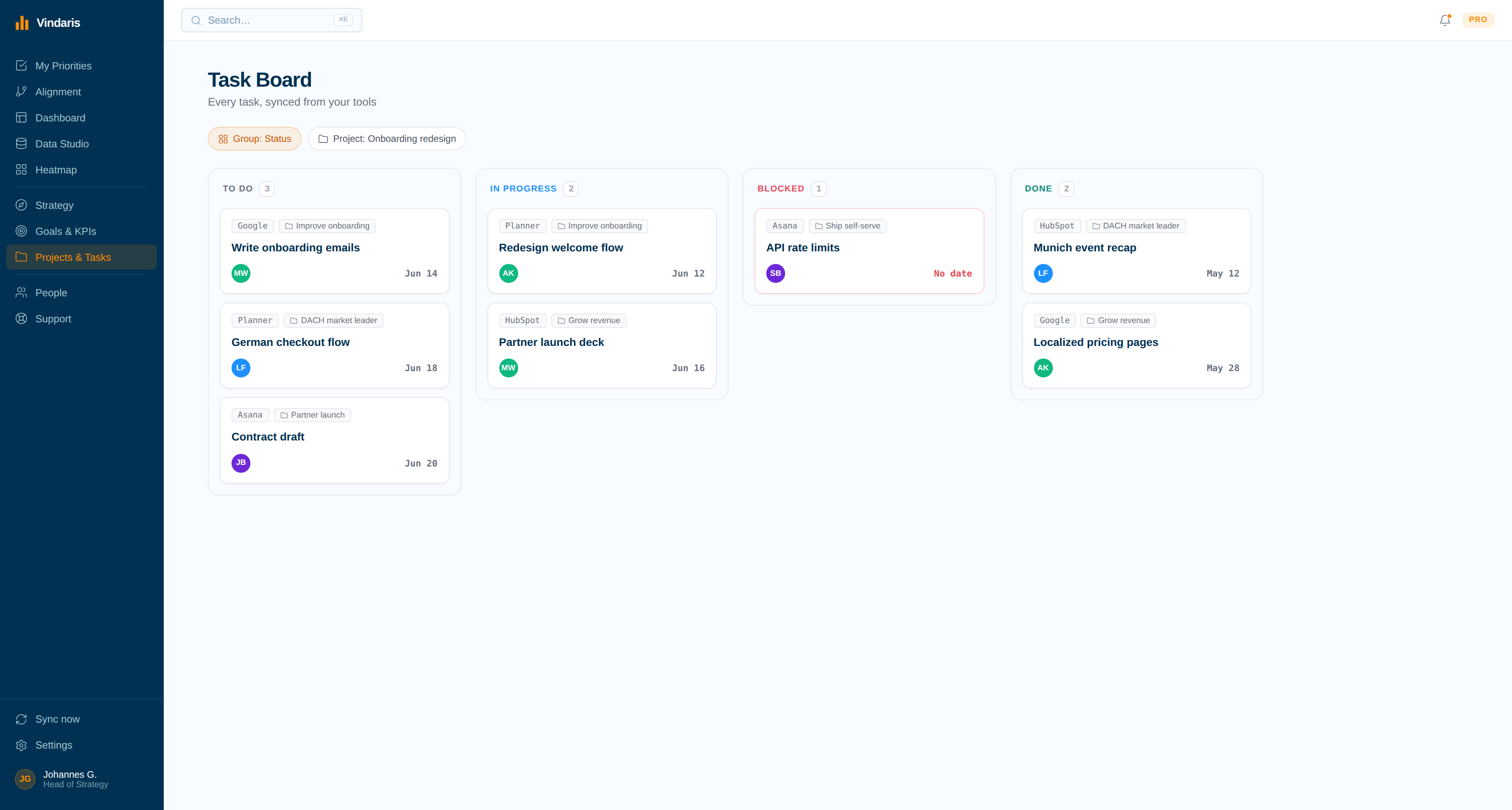
A task from Outlook appears on the task board with its source, alongside the tasks that came from the plan. A request a customer sent by email gets an owner like any other task.

The Vindaris task board, where tasks created from Outlook mail appear next to planned work
Work Graph

Vindaris flags a stalled email commitment.

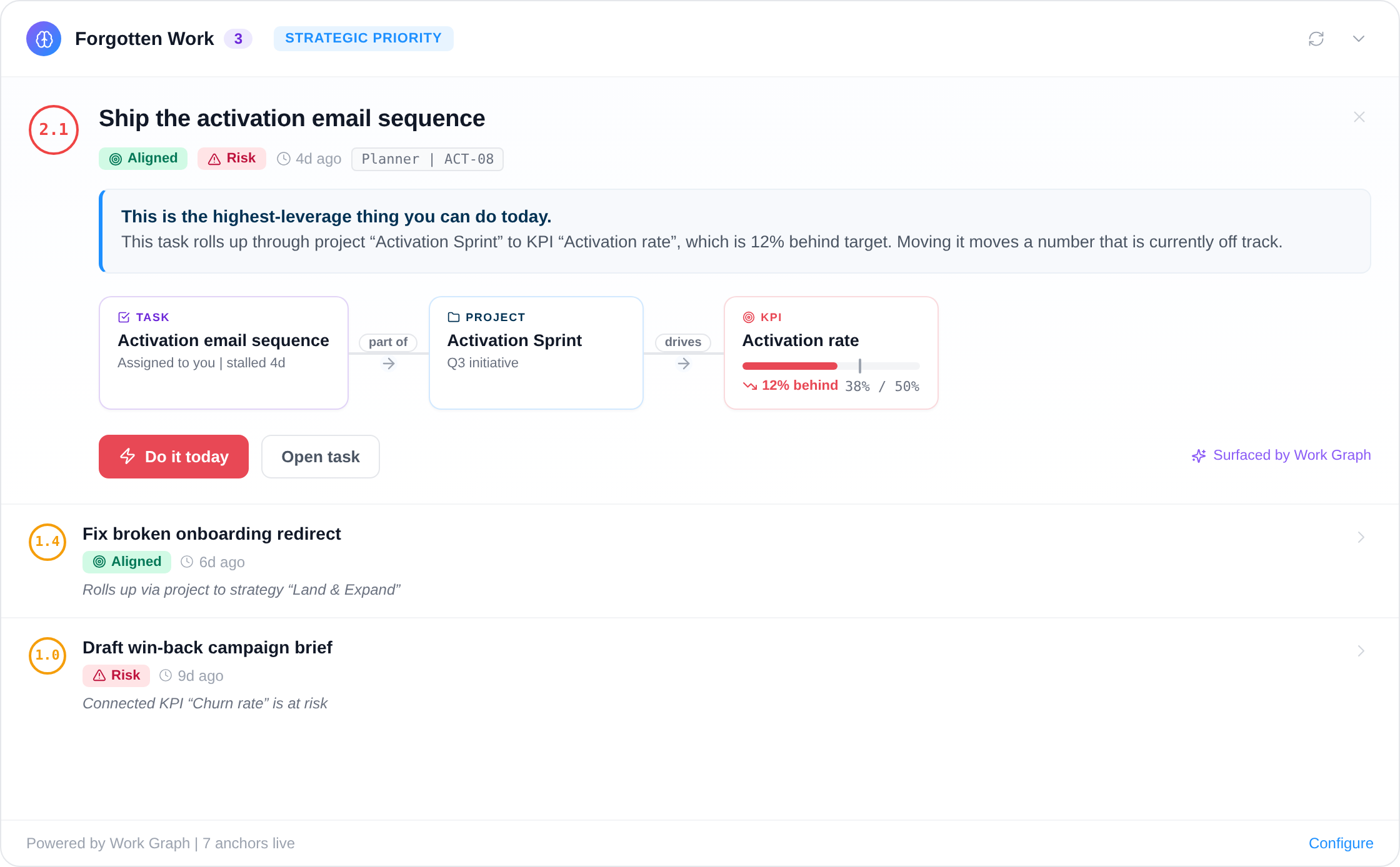
Vindaris analyzes a task from Outlook like any other work activity. If the task stalls, the Work Graph alert names it together with the goal it is aligned to.

A Work Graph alert in Vindaris showing a stalled task and the goal it is aligned to
Why it matters

Work that arrives by email rarely reaches the plan.

A customer asks for something by email and someone agrees. The request takes two weeks of a team's time, and no planning tool ever lists it. The goal those two weeks belonged to slips, and the review cannot say why.

A category puts that request into Vindaris at the moment someone accepts it. The task has an owner, and it either aligns to a goal or shows up as effort that is not on the priorities.

Related

Where to go next

Integration
Gmail
The same email-to-task flow, built on Gmail labels.
Solution
Goal tracking software
Progress derived from work activity instead of a status field.
Use case
When execution starts slipping
Catch the goal whose work stopped moving, weeks before the deadline.
Frequently asked questions

Outlook and Vindaris, answered

Does Vindaris read my whole mailbox?

Vindaris pulls the messages that carry a category you selected, and reads a short preview of the other messages in those conversations so replies appear as comments. The Microsoft permission behind this, Mail.ReadWrite, is mailbox-wide because Microsoft offers no narrower one per category.

Do I need to create a new Outlook category?

No. Vindaris shows the categories that already exist in your Outlook and you choose which ones to import. You can also create a dedicated category in Outlook and select that.

What happens to the email when I complete the task?

Vindaris removes the selected category from the message and leaves any other categories in place. If you turn on archiving, it also moves the message to your Archive folder.

Does Vindaris read the full email or its attachments?

No. Vindaris reads the subject, the sender, the received date, the importance, the categories and a short preview of the message. It does not fetch the full body or attachments.

Can Vindaris send email from my account?

No. Vindaris does not send mail. It changes a message only to remove a selected category and, with archiving on, to move it to Archive.

Move the promises in your inbox onto the plan.

Connect Outlook in a couple of minutes. Free forever for goal management, two integrations included.

Connect Outlook free

No credit card | Nobody leaves Outlook