Google Drive logoGoogle Drive
Document context

Connect a Drive folder to a goal, and Vindaris reads the documents behind it.

The planning doc and the strategy deck usually sit in a Google Drive folder. Vindaris summarizes the documents in a folder you connect and uses those summaries in the risk narratives and reviews for the goal and everything aligned under it.
Connect Google Drive free
Feeds
Daily document summaries from the folders you connect.
Scope
Only the folders you connect. Vindaris never reads files in other folders.
Reads
Google Docs, Sheets and Slides, PDFs, plain-text and Markdown files. Vindaris stores a short summary, not the full file content.
Auth
Google OAuth with the read-only Drive scope.
What Vindaris reads

The folder holds the thinking behind the goal.

Most goals start in a document. Vindaris reads the folder you connect so the reasoning in that document is available when the goal is reviewed.

Only the folders you connect

You connect a Drive folder to a goal, project or strategy. Vindaris reads files inside connected folders and never reads files anywhere else in your Drive.

A short summary of each file

Vindaris reads the text of a connected file to produce a short summary of what it defines or decides. It stores the summary with the title, link and timestamps, not the full file content.

Context follows the alignment

A folder connected to a goal informs that goal and the projects and tasks aligned under it.

Refreshed daily

A scheduled job reads each connected folder once a day. Vindaris summarizes a changed file again and drops a removed one on the next pass.

A changed document is a signal

The Work Graph counts summaries of documents in connected Drive folders among its signals, so a new or changed document shows up on the plan item.

Read-only access

The scope is read-only. Vindaris cannot create, change or delete anything in your Google Drive.

How the connection works

Connect the folder, then let Vindaris read.

The setup has one decision in it: which folder explains which goal.

01
Sign in with Google

Connect Google Drive from the integrations settings in Vindaris. Vindaris requests the read-only Drive scope only at that point.

02
Pick a folder on the canvas

A workspace admin chooses the folder and connects it to the goal, project or strategy it belongs to.

03
Vindaris summarizes the documents

Vindaris reads the supported files in the folder and stores a short summary of each on the connected item.

04
The summaries stay current

The daily job picks up changed files, so a revised plan reaches the next review.

Alignment Canvas

Connect the folder next to the goal it explains.

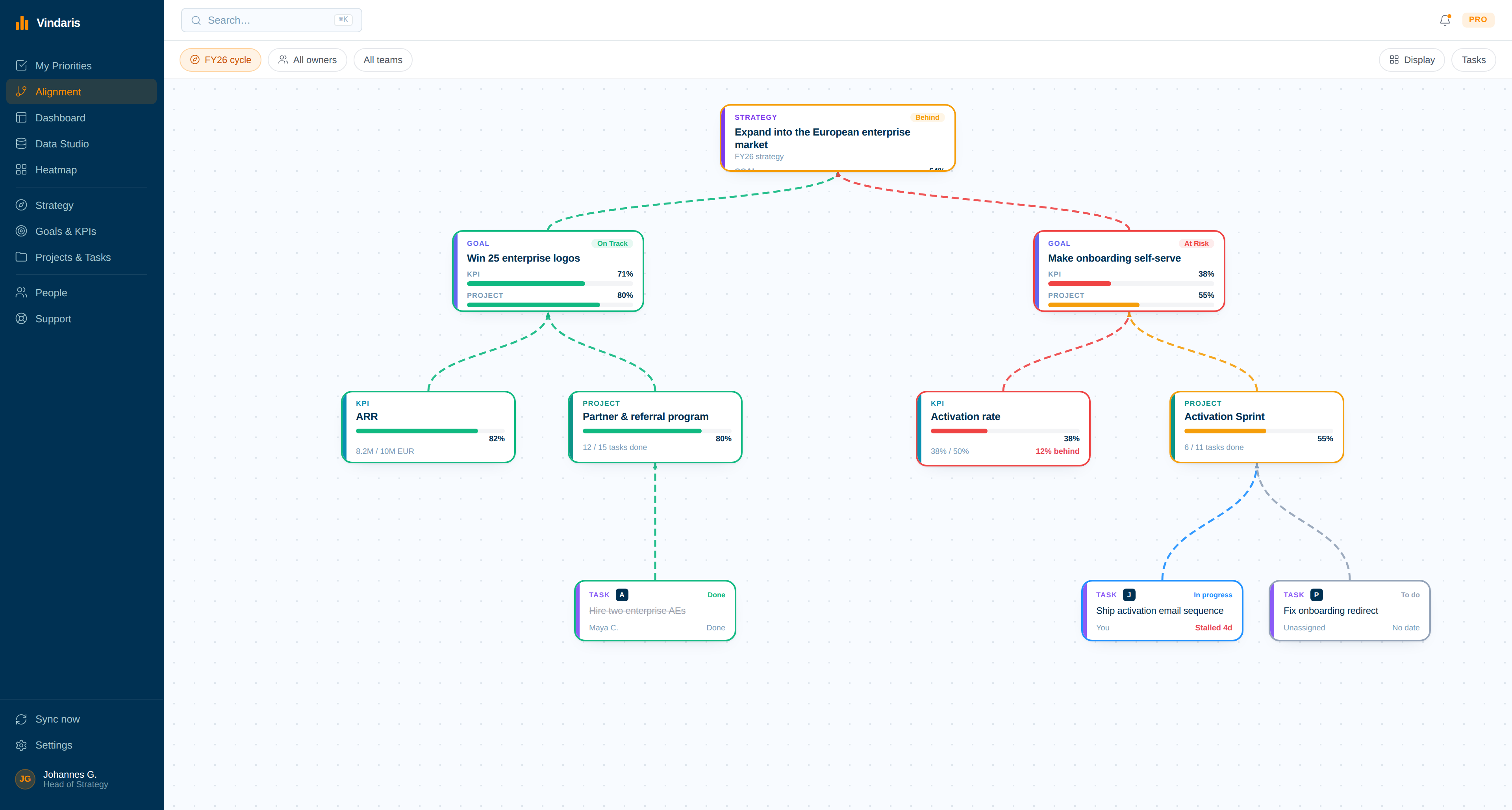
You connect the folder on the canvas, on the goal itself, so the document context sits where you mapped the strategy.

The Vindaris alignment canvas, where a Google Drive folder is connected to a goal
Work Graph

The risk narrative includes the plan behind the goal.

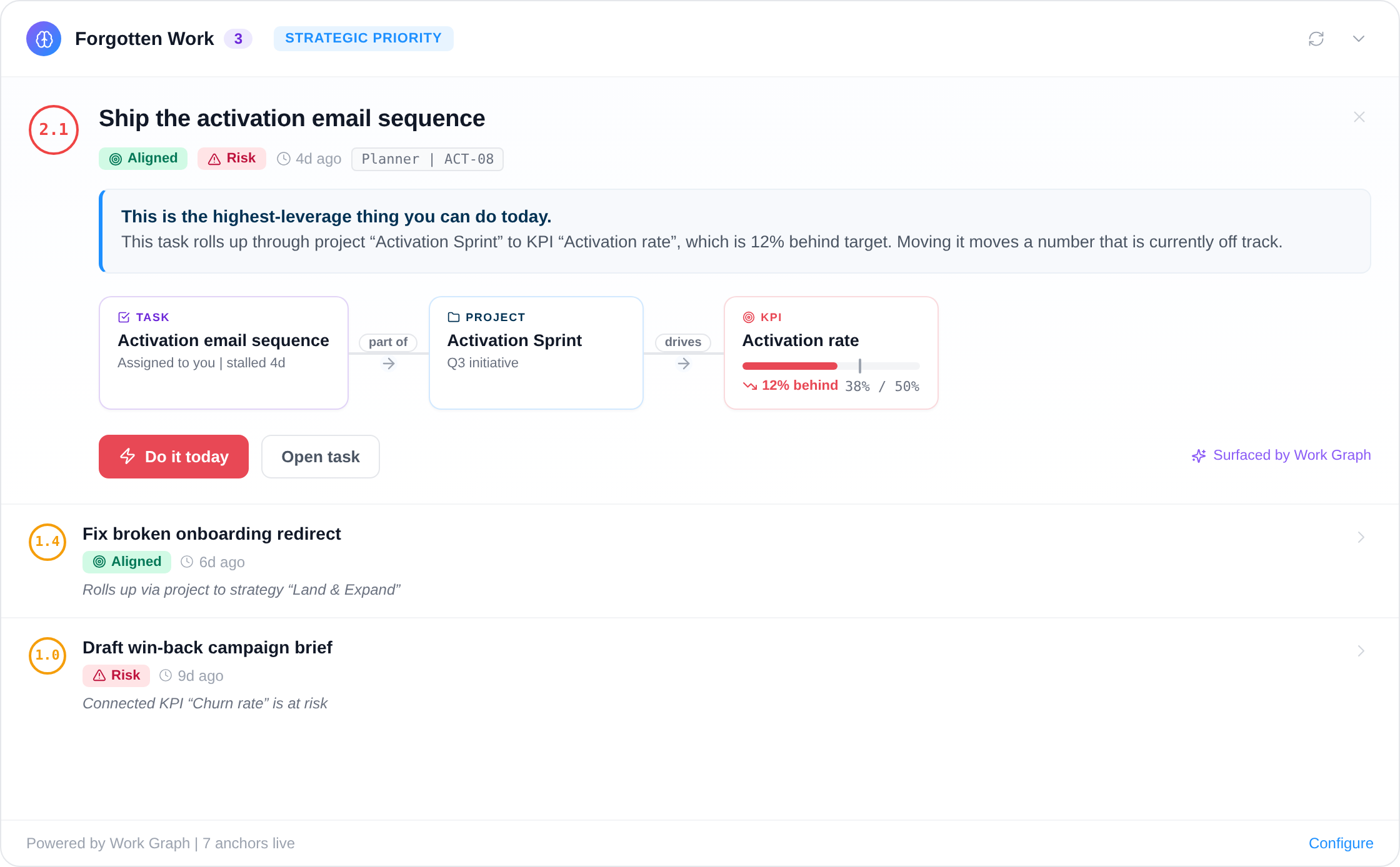
When Vindaris explains why a goal is at risk, it includes the summaries of the connected documents as reference, so the narrative reflects what the goal was meant to achieve.

A Work Graph alert in Vindaris with the risk narrative for a goal
Your data

How Vindaris handles Google Drive data.

Vindaris requests the Google scope https://www.googleapis.com/auth/drive.readonly only after you choose to connect Google Drive. Vindaris's use of information received from Google APIs adheres to the Google API Services User Data Policy, including the Limited Use requirements.

Vindaris does not sell data obtained from the Google Drive API and does not use it for advertising or to train generalized AI models. The full statement is in section 11.1 of the Privacy Notice.

Why it matters

Teams write the intent down once and then review the goal without it.

Someone wrote the doc that set the target and the scope. The quarter started, and every review since has looked at a status and a number. The reasoning that produced the goal stays in a folder nobody opens during the review.

Connecting the folder attaches that reasoning to the goal. The summary reaches the projects and tasks aligned under the goal, Vindaris refreshes it when the document changes, and the risk narrative can weigh what the goal was meant to achieve.

Related

Where to go next

Integration
SharePoint
The same document context for SharePoint library folders.
Integration
OneDrive
The same document context for folders in your own OneDrive.
Product
Alignment Canvas
Map strategy, goals, KPIs, projects, and tasks on one board.
Frequently asked questions

Google Drive and Vindaris, answered

Does Vindaris read my whole Google Drive?

No. Vindaris reads only files inside the Drive folders you connect to a plan item. It never reads files in folders you have not connected.

Is the full document stored in Vindaris?

No. Vindaris stores a short summary of each file with its title, link and timestamps. It does not store the full file content.

Which file types does Vindaris read?

Recently modified Google Docs, Sheets and Slides, PDFs, plain-text and Markdown files. A scanned PDF without a text layer yields no summary.

Can Vindaris change files in my Google Drive?

No. The connection requests the read-only scope drive.readonly, so Vindaris cannot create, change or delete anything in your Google Drive.

What happens when I disconnect Google Drive?

Vindaris revokes its access, deletes its copy of your OAuth tokens and removes your connected folders, so it reads no further files. The summaries it already created stay in your workspace, and you can remove them in Vindaris.

Give the goal the documents it was built on.

Connect Google Drive in a couple of minutes. Free forever for goal management, two integrations included.

Connect Google Drive free

No credit card | Nobody leaves Google Drive